Gerir os cookies que são utilizados para publicidade, como a personalização de anúncios, o remarketing e a análise de desempenho de anúncios.
2.5.1.5. File editor
File Manager has a built-in editor with a simple interface and syntax highlighting.
Opening editor
Important points:
- File contents must be text.
- File size should not exceed 5 MB.
To open a file in the built-in file manager editor, click on its name or double-click on its row.
Toolbar
At the top of the editor window there is a toolbar with the following buttons:
- "Save" (shortcut Ctrl+S) — save changes to the file.
- "Save and exit" — save changes to the file and close the editor.
- "Save as" — save the current file with a different name.
- "Undo" (shortcut Ctrl+Z) — undo last change.
- "Redo" (shortcut Ctrl+Y) — redo last change.
- "Search" (shortcut Ctrl+F) — search in the file contents.
- "Autocomplete" — enable/disable autocompletion of the text according to the entered part of the text. The prompts are determined by the format of the edited file.
- "Word wrap" — enable/disable word line wrap.
- "Theme" — switch to a dark/light theme.
- "UTF-8" — switch the editor encoding to UTF-8/CP-1251.
- "Expand" — enable/disable full screen mode.
- "Close" — close the editor window without saving the changes made.
Search
Regular expression search works only within lines, multi-line is not supported.
By default, a normal search opens:
- "Search for" — pattern to be found.
- "<" — move to the previous match.
- ">" — move to the next match.
- "All" — switch to the multicursor mode and select all matches.
- "×" — close the search bar.
- "+" — enable/disable the search mode with replacement.
- "0 of 0" — number of the current match and the total number of matches found.
- ".*" — enable/disable regular expression mode.
- "Aa" — enable/disable character case sensitivity.
- "\b" — enable/disable the whole word search mode.
- "S" — search only on the selected text fragment.
When the search with replace mode is enabled, an additional line is added:
- "Replace with" — pattern to replace the found matches with.
- "Replace" — replace the current match.
- "All" — replace all the matches.
File contents
In the center, the contents of the file you are editing are displayed: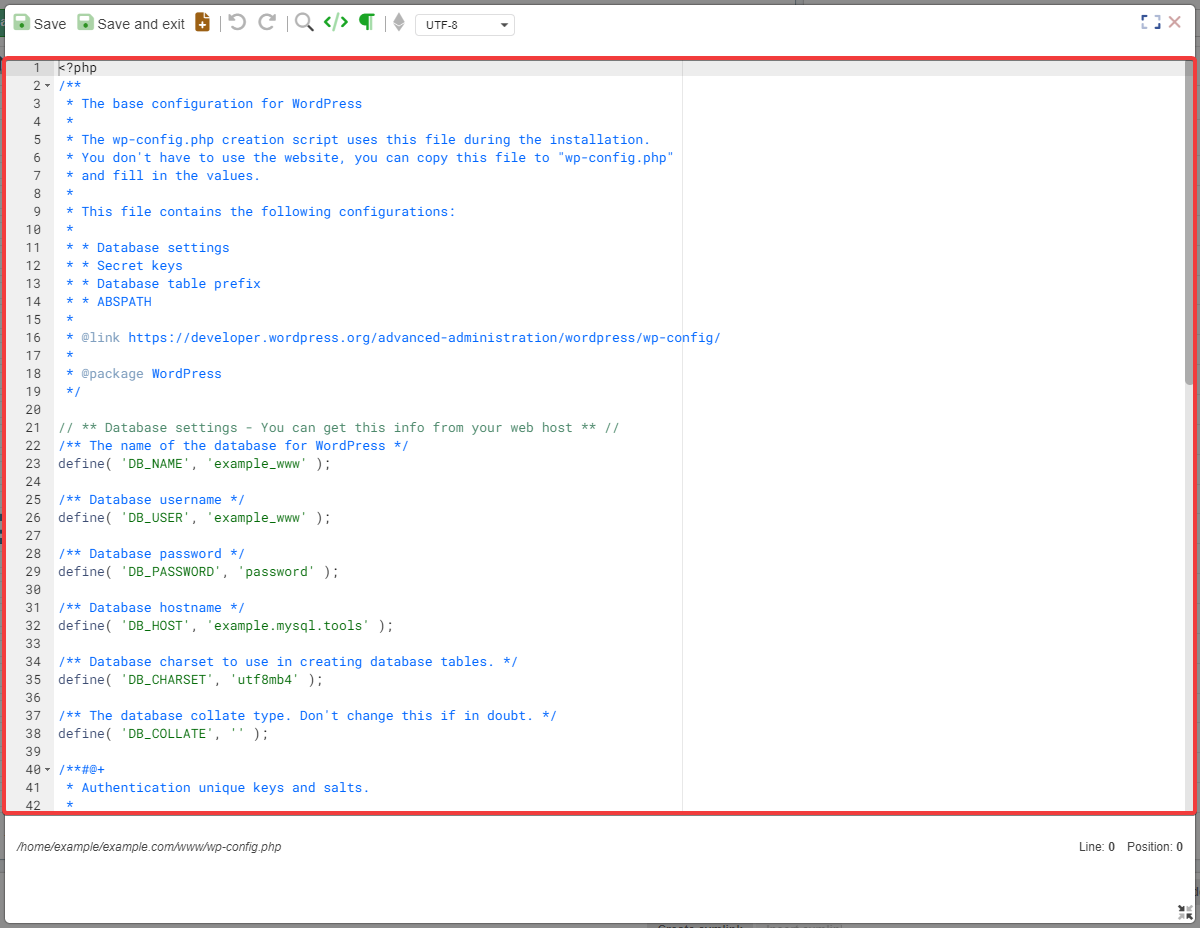
Status bar
At the bottom of the editor window, a status bar with the following information is displayed:
- Absolute path to the edited file.
- Current cursor coordinates — in which line and at which position the cursor is now located.